
Home›Blog›Voice AI Integration Guide
Voice AI Integration Guide: Connecting to Your Existing Tech Stack
A comprehensive guide to integrating AI voice agents with your CRM, calendar, payment systems, and 50+ business tools. Step-by-step tutorials for Salesforce, HubSpot, Stripe, and more.
By Integration Engineering Team
February 3, 2026
18 min read
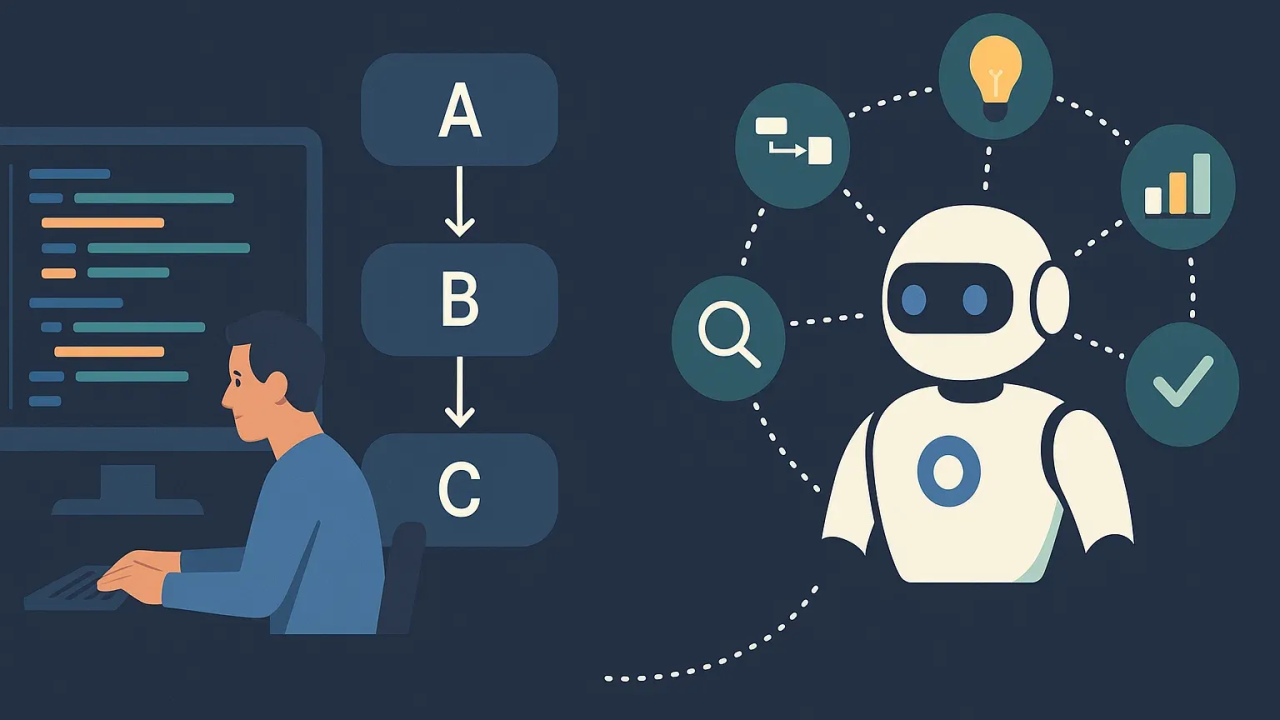
Seamlessly connect AI voice agents to your entire business ecosystem
“Will this work with our CRM?” This question comes up in every sales conversation about AI voice agents. The answer is almost always yes—but understanding how integrations work helps you design better automation workflows.
AI voice agents don’t exist in isolation. They need to access your customer data, update records, schedule appointments, process payments, and trigger actions across your tech stack. The magic happens when voice agents become the conversational interface to your existing systems.
This comprehensive guide covers everything from basic webhook integrations to complex multi-system workflows. Whether you’re a developer building custom integrations or a business user using Zapier, you’ll learn exactly how to connect voice AI to your tools.
The 4 Integration Methods
VoxPria supports four ways to integrate with external systems. Choose the right method based on your technical capabilities and integration complexity:
1. Native Integrations
Pre-built, one-click connections
VoxPria has pre-built integrations for the most popular business tools. These require zero code and work out of the box.
Available Native Integrations:
Salesforce
HubSpot
Google Calendar
Stripe
Microsoft 365
Calendly
2. Zapier Integration
Connect to 5,000+ apps with no code
VoxPria integrates with Zapier, giving you access to thousands of apps through visual workflow builders.
Popular Zapier Workflows:
- Voice call completed → Create row in Google Sheets
- Appointment scheduled → Add to Notion database
- Lead qualified → Send Slack notification to sales team
- Customer says "interested" → Create deal in Pipedrive
- Call recording available → Upload to Dropbox
3. Webhooks
Real-time event notifications to your server
Webhooks send HTTP POST requests to your server whenever events occur (call started, call ended, appointment scheduled, etc.).
Example Webhook Payload:
4. REST API
Full programmatic control
VoxPria's REST API gives you complete control to trigger calls, update agent scripts, retrieve analytics, and manage everything programmatically.
Example API Call (Trigger Outbound Call):
curl -X POST https://api.voxpria.com/v1/calls \
  -H "Authorization: Bearer YOUR_API_KEY" \
  -H "Content-Type: application/json" \
  -d ''
CRM Integration Deep Dive
The most common integration: syncing voice calls with your CRM. Here’s how to do it with the top 3 CRMs.
Salesforce Integration
What Gets Synced:
| VoxPria Event | Salesforce Action |
|---|---|
| Call completed | Create Activity record, update Last Contact Date |
| Lead qualified | Update Lead Status, assign to sales rep |
| Appointment scheduled | Create Event, sync to assigned user’s calendar |
| Customer requested callback | Create Task assigned to account owner |
| Call recording available | Attach recording to Contact/Lead record |
Setup Steps:
Search “VoxPria” in AppExchange, click Install
Log into Salesforce when prompted, grant permissions
Map VoxPria data fields to Salesforce fields (automatic for standard fields)
Make a test call, verify Activity appears in Salesforce
💡 Pro Tip: Enable “Click-to-Call” in Salesforce to trigger VoxPria calls directly from Contact records. Hover over phone number → Click to call with AI agent.
HubSpot Integration
HubSpot integration is particularly powerful because it can trigger automated workflows based on call outcomes.
Example Workflow:
AI agent qualifies lead, determines interest level
Contact property “Lead Score” updated based on conversation
IF Lead Score > 80 → Assign to sales rep + Send email
Complete context from AI call transcript available
⚡ Power Move: Use HubSpot’s “Lead Scoring” to automatically prioritize leads based on AI call conversations. “Very interested” = +50 points, “Not now” = -20 points, etc.
Calendar & Scheduling Integrations
AI voice agents can check availability and book appointments in real-time. Here’s how it works with major calendar systems.
Google Calendar
Real-Time Availability Checking
During a call, the AI agent can:
- Check which time slots are available today/tomorrow/this week
- Respect buffer times and working hours
- Handle multiple calendars (personal + work)
- Instantly book appointment when customer confirms
- Send calendar invite to customer’s email
Example Conversation:
Customer: “2 PM is perfect.”
AI: “Great! I’ve booked you for tomorrow, February 4th at 2 PM. You’ll receive a calendar invite in your email.”
[Calendar event created automatically in Google Calendar]
Microsoft 365 / Outlook
Identical functionality to Google Calendar, works with Outlook and Microsoft Teams calendars.
Calendly
Perfect for businesses already using Calendly for scheduling. AI agent respects all your Calendly rules:
- Buffer times between meetings
- Maximum meetings per day
- Specific event types (15 min, 30 min, 60 min)
- Automatic timezone conversion
- Payment collection (Calendly Premium)
Payment Processing Integrations
Stripe Integration
⚠️ Important: PCI Compliance
AI voice agents should NEVER ask customers to speak credit card numbers aloud. This violates PCI-DSS. Instead, use payment links.
How Voice-to-Payment Works (PCI Compliant):
“I can take that payment for $150 now. I’ll text you a secure payment link.”
Creates unique, one-time payment link with correct amount
Arrives within 10 seconds, opens in mobile browser
Stripe-hosted page, PCI compliant, supports Apple Pay/Google Pay
CRM updated, receipt emailed, accounting system notified
✅ Alternative: Saved Payment Methods
For returning customers, use Stripe Customer Portal to manage saved cards. AI: “Would you like to use the card ending in 4242 that we have on file?”
Integration Best Practices
1. Start Simple, Then Expand
Don’t try to integrate everything on day one. Start with your most critical system (usually CRM), verify it works perfectly, then add more integrations incrementally.
2. Test with Real Data
Use actual customer phone numbers and real scenarios during testing. Edge cases reveal themselves quickly: duplicate contacts, missing fields, timezone confusion.
3. Handle Failures Gracefully
APIs fail. Calendars have conflicts. CRMs time out. Design your workflows to handle failures: “I’m having trouble accessing the calendar right now. Can I call you back in 5 minutes to confirm?”
4. Monitor Integration Health
Set up alerts for integration failures. VoxPria dashboard shows integration success rates in real-time. If Salesforce sync drops below 95%, investigate immediately.
5. Document Your Workflows
Six months from now, you’ll forget why you set up a specific webhook. Document what each integration does, what triggers it, and what the expected outcome is.
Connect VoxPria to Your Tech Stack
Integrations included free with every plan. Connect to Salesforce, HubSpot, Google Calendar, Stripe, and 50+ tools.

