
Welcome! This quick start guide will have you up and running with your first campaign in just 5 minutes. Moreover, we’ll use a simple template to get you started quickly. Therefore, no technical skills are required.
What You’ll Need #
Before starting, gather these items. Additionally, having them ready will make the process much smoother:
- ✅ 5-10 test phone numbers (your own or team members)
- ✅ A simple message to send (e.g., “This is a test call”)
- ✅ 5 minutes of your time
Step 1: Access Quick Start Wizard (30 seconds) #
First, navigate to the Quick Start wizard. Furthermore, this wizard automates most of the setup:
- Log into VoxPria
- Click the “Quick Start” button on your dashboard
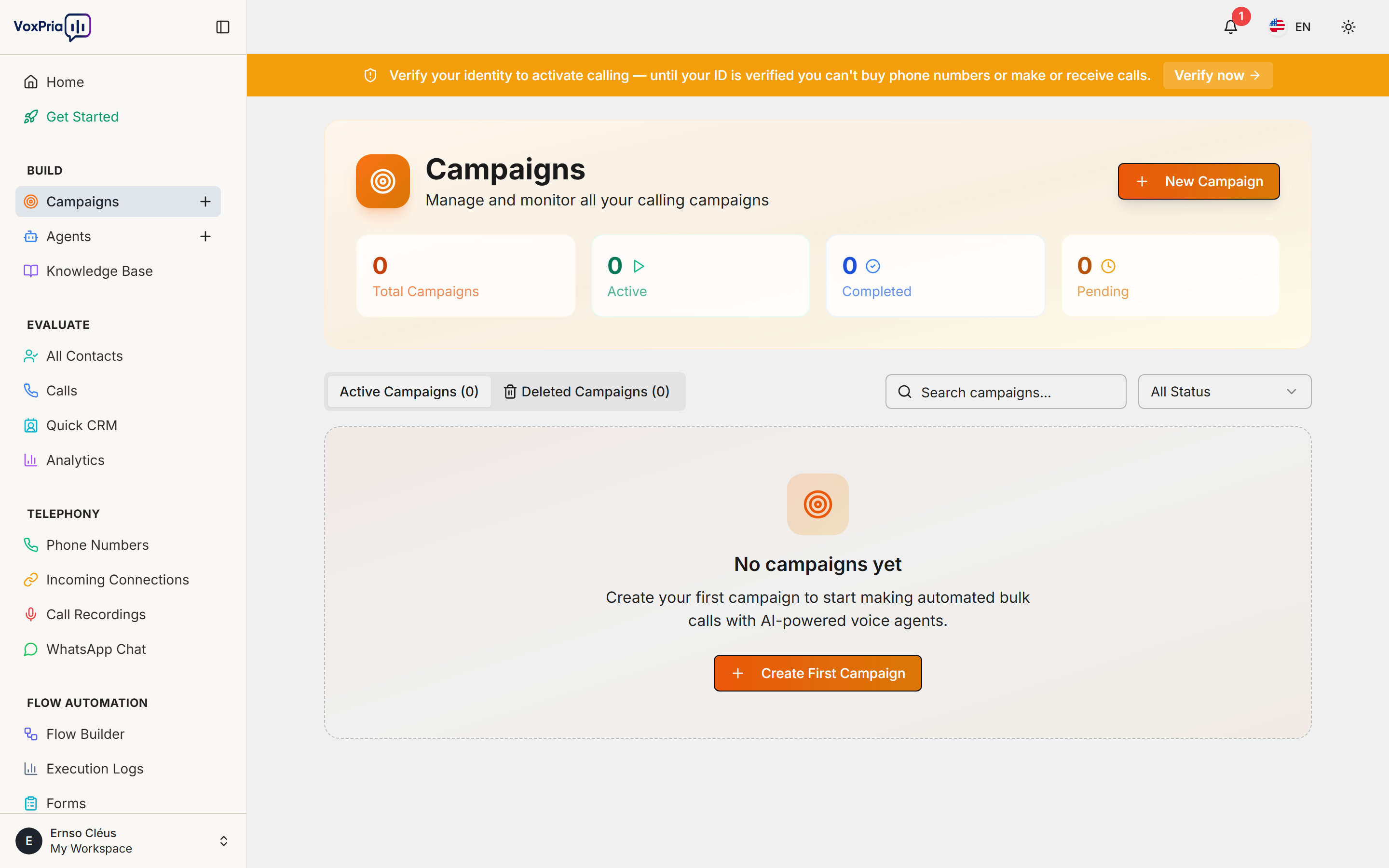
- Or go to BUILD → Campaigns → Quick Start
- Select “Voice Campaign” as your campaign type
Step 2: Choose a Template (1 minute) #
Next, select a pre-built template. Additionally, templates include pre-written scripts and optimal settings:
Popular Templates for First Campaign: #
- Simple Notification – Basic one-way message delivery
- Appointment Reminder – Confirm appointments with customers
- Survey Call – Ask questions and collect responses
- Event Invitation – Invite people to events
💡 Recommendation: Choose “Simple Notification” for your first test. Consequently, you’ll learn the basics without complexity.
Step 3: Customize Your Message (1 minute) #
Now, personalize the message script. Moreover, the template provides a starting point you can edit:
Default Template Script: #
"Hello! This is a test call from VoxPria.
We're just checking that everything is working correctly.
Have a great day!"
You can edit this text or use it as-is for testing. Additionally, you can add personalization variables like {first_name} later.
Choose Your Voice: #
- Click “Select Voice”
- Listen to voice samples by clicking the play button
- Choose your preferred voice (recommended: “Emma – US English”)
- Click “Confirm Voice”
Step 4: Add Test Contacts (1 minute) #
Next, add the phone numbers you want to call. Furthermore, for testing, we recommend calling yourself first:
- Click “Add Contacts”
- Select “Manual Entry”
- Enter phone numbers (format: +1234567890)
- Add 3-5 numbers for testing
- Click “Save Contacts”
⚠️ Important: Always include your own number first so you can hear how the call sounds. Therefore, you can make adjustments if needed.
Step 5: Review and Launch (1 minute) #
Finally, review your campaign settings. Additionally, this summary shows everything before you launch:
Review Checklist: #
- ✅ Campaign name: “My First Test Campaign”
- ✅ Template: Simple Notification
- ✅ Voice: Emma (US English)
- ✅ Contacts: 5 numbers
- ✅ Estimated cost: $0.50 (based on credits)
- ✅ Schedule: Start immediately
If everything looks correct, click the big orange “Launch Campaign” button!
Step 6: Monitor Your Campaign (1 minute) #
After launching, you’ll be taken to the monitoring dashboard. Moreover, you can watch calls happen in real-time:
- Live Status – See calls in progress
- Success Rate – Track answered calls
- Real-time Feed – Watch each call complete
Your phone should ring within 30 seconds! Answer it and listen to your first VoxPria call. Consequently, you’ll experience what your customers will hear.
What Happens Next? #
After your test campaign completes, you’ll be able to:
- Listen to Recordings – Go to EVALUATE → Calls
- View Transcripts – Read text versions of calls
- Check Analytics – See performance metrics
- Create Real Campaign – Use what you learned
Troubleshooting #
If something doesn’t work, check these common issues. Additionally, most problems have simple solutions:
Call Not Received? #
- ✅ Check phone number format (include country code)
- ✅ Ensure phone has signal
- ✅ Check spam/blocked calls settings
- ✅ Wait 2-3 minutes (calls queue automatically)
Insufficient Credits? #
Go to BILLING → Billing & Credits → Add Credits to top up your account. Furthermore, new accounts receive free trial credits.
Voice Sounds Robotic? #
Try a different voice from the voice library. Moreover, premium voices sound more natural than standard voices.
Next Steps #
🎉 Congratulations! You’ve created your first campaign. Now explore these guides:
- Creating Your First Campaign (Detailed Guide)
- Understanding Analytics Dashboard
- Best Practices for Voice Campaigns
- Importing Contact Lists
Learn more about automated voice systems and their business applications.


