
Once your campaign is running, you’ll need to monitor and manage it effectively. Moreover, VoxPria provides powerful tools to control campaigns in real-time. In this guide, we’ll show you how to manage active campaigns like a pro.
Accessing Campaign Management #
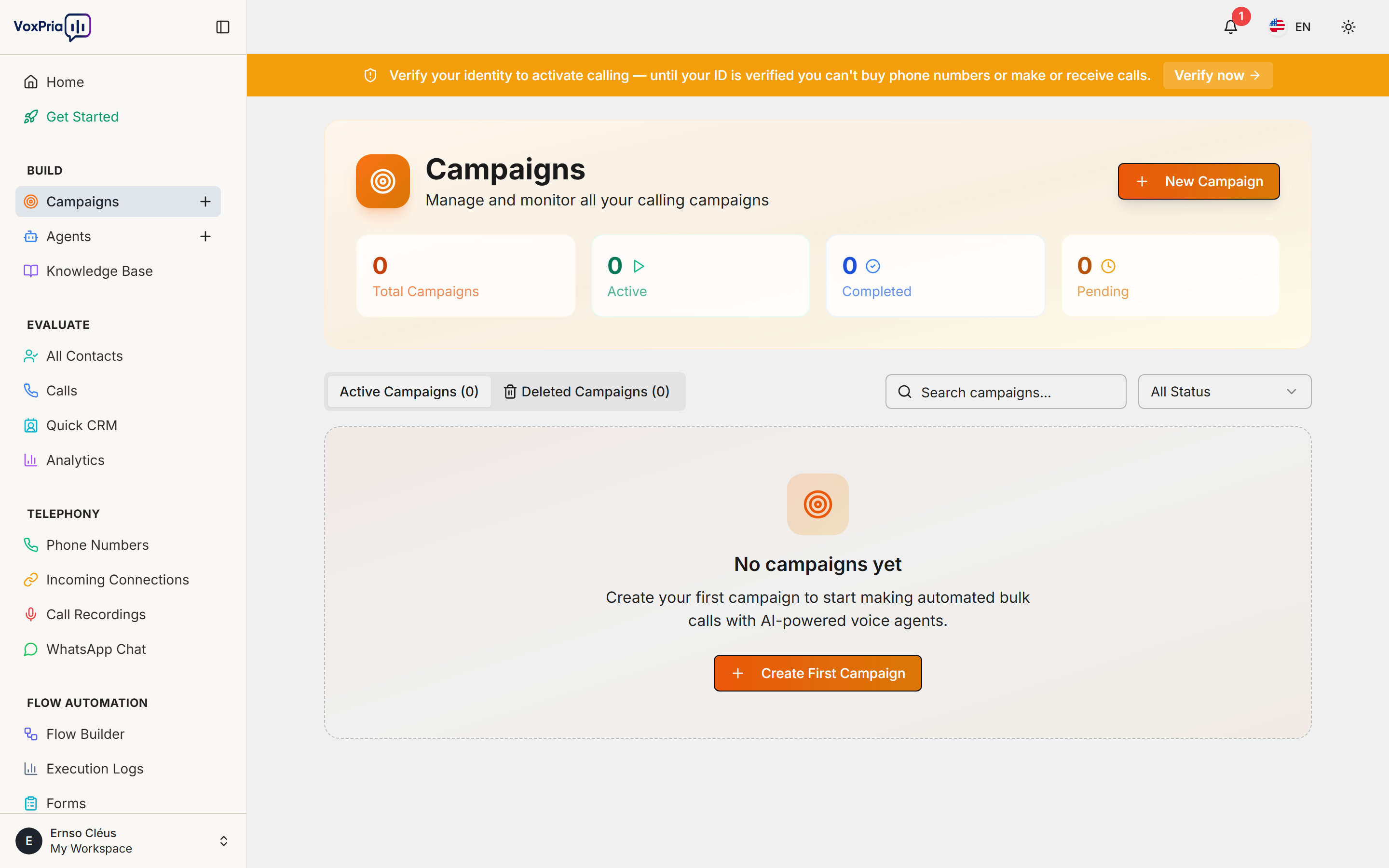
First, navigate to your campaigns overview. Additionally, this is your central hub for all campaign activities:
- Go to BUILD → Campaigns
- You’ll see tabs: Active, Scheduled, Completed, Paused
- Click “Active” to see running campaigns
Understanding Campaign Status #
Campaigns can have different statuses. Furthermore, each status indicates what the campaign is currently doing:
- 🟢 Running – Actively making calls right now
- 🔵 Scheduled – Set to start at a future time
- 🟡 Paused – Temporarily stopped by you
- 🟠 Queued – Waiting for available resources
- ⚪ Completed – All calls finished
- 🔴 Failed – Encountered an error
Real-Time Monitoring #
When you click on any active campaign, you’ll see the monitoring dashboard. Moreover, this updates in real-time as calls are made:
Key Metrics Displayed: #
- Total Contacts – How many numbers in the campaign
- Calls Made – Number of attempts so far
- Successful – Calls that were answered
- No Answer – Calls that weren’t picked up
- Failed – Calls that couldn’t complete
- In Progress – Calls happening right now
- Remaining – Calls still to be made
- Estimated Completion – When campaign will finish
Pausing a Campaign #
Sometimes you need to pause a campaign temporarily. Additionally, this is useful if you notice issues or need to make changes:
How to Pause: #
- Open the active campaign
- Click the “Pause” button (⏸️) in the top right
- Confirm you want to pause
- Campaign stops making new calls immediately
- Calls already in progress will complete
💡 Pro Tip: Pausing doesn’t lose your progress. Therefore, you can resume exactly where you left off.
Resuming a Paused Campaign #
When you’re ready to continue, resuming is simple. Moreover, the campaign picks up where it stopped:
- Go to the “Paused” tab
- Find your campaign
- Click “Resume” (▶️)
- Calls restart within 30 seconds
Modifying Active Campaigns #
You can make certain changes while a campaign is running. However, some changes require pausing first:
Can Change Without Pausing: #
- ✅ Add more contacts to the list
- ✅ Adjust call window hours
- ✅ Change retry settings
- ✅ Modify campaign tags
Must Pause to Change: #
- 🔶 Agent/script modifications
- 🔶 Voice selection
- 🔶 Caller ID number
- 🔶 Remove contacts from list
Stopping a Campaign Permanently #
If you need to stop a campaign completely, you can cancel it. Furthermore, this is different from pausing:
- Open the campaign
- Click “Actions” dropdown
- Select “Stop Campaign”
- Confirm cancellation
- All queued calls are cancelled
- Campaign moves to “Completed” with status “Stopped”
⚠️ Warning: Stopping is permanent and cannot be undone. Therefore, use pause if you might want to continue later.
Adjusting Call Speed #
You can control how fast calls are made. Moreover, this is useful for managing costs and resources:
- Normal Speed – Default rate (10-20 simultaneous calls)
- Fast – Aggressive dialing (up to 50 simultaneous)
- Slow – Conservative approach (5-10 simultaneous)
- Custom – Set specific concurrent call limit
Change this in Campaign Settings → Speed Control
Handling Problem Contacts #
Sometimes specific contacts cause issues. Additionally, you can manage them individually:
Options for Problem Contacts: #
- Skip – Don’t call this number anymore in this campaign
- Retry Now – Attempt call immediately
- Mark as Invalid – Remove from list and blacklist
- Add Note – Record why there’s an issue
Access these options by clicking on any contact in the campaign’s contact list.
Exporting Campaign Data #
While a campaign is running, you can export data. Furthermore, this is useful for reporting:
- Open the campaign
- Click “Export” button
- Choose format: CSV, Excel, or PDF
- Select data to include (calls, recordings, transcripts)
- Click “Download”
Best Practices #
- ✅ Monitor First Hour – Watch closely when campaign starts
- ✅ Check Success Rate – If below 40%, investigate why
- ✅ Listen to Recordings – Sample calls to ensure quality
- ✅ Adjust Speed – Start slow, increase if all goes well
- ✅ Set Alerts – Get notified of issues via email/SMS
Related Articles:


