
Creating your first campaign in VoxPria is straightforward and takes just a few minutes. In this guide, we’ll walk you through every step from start to finish. Moreover, you’ll learn best practices to ensure your campaign succeeds.
Before You Begin #
Before creating your campaign, ensure you have the following ready. Additionally, having these prepared will make the process much smoother:
- Contact List – At least 10-20 contacts for testing (CSV format recommended)
- Script – Your message or talking points
- Voice Selection – Choose from available voices (we’ll help you with this)
- Time Frame – When you want calls to be made
- Credits – Sufficient credits in your account (check Billing section)
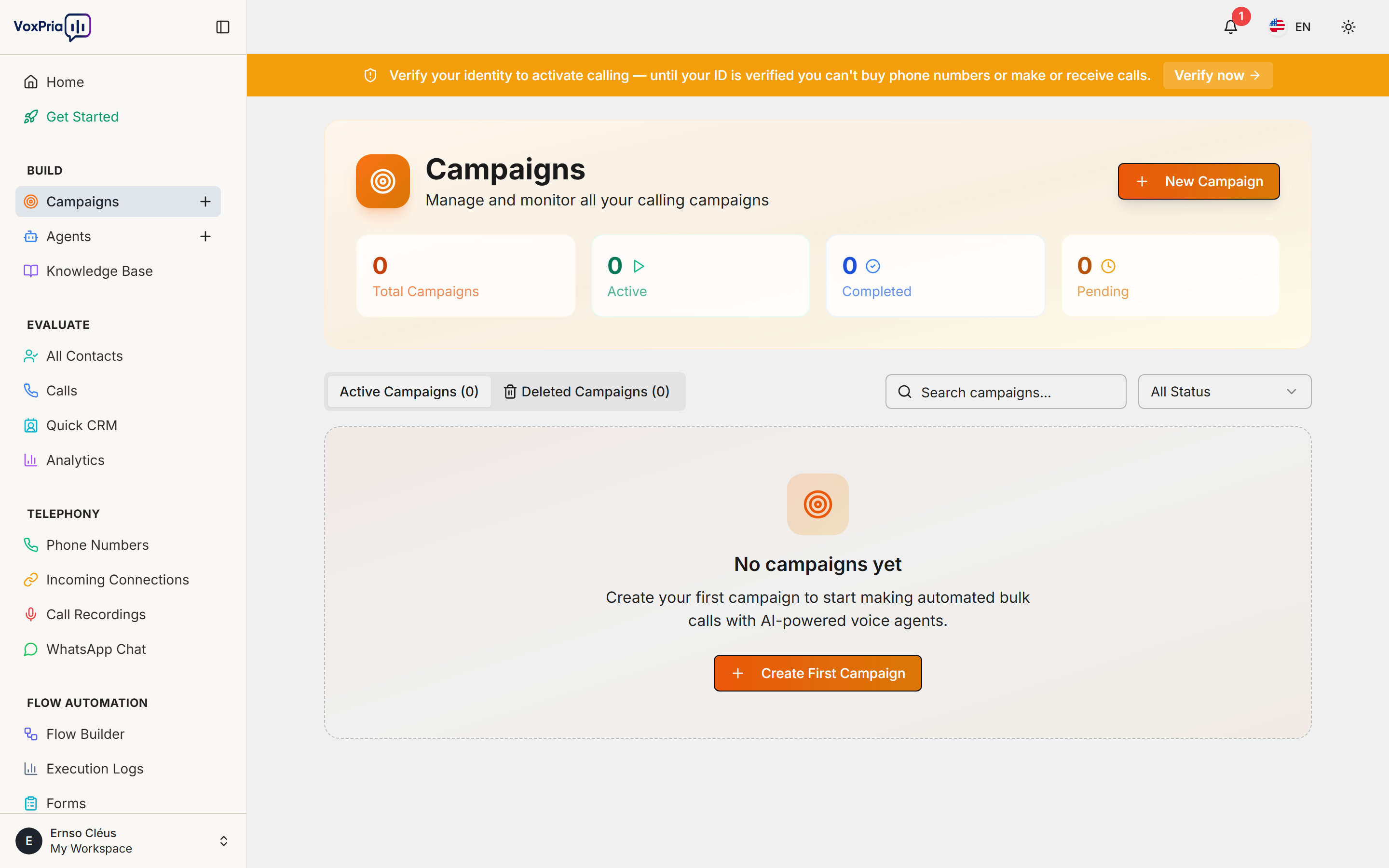
Step 1: Navigate to Campaigns #
First, access the Campaigns section where you’ll create your new campaign. Therefore, follow these steps:
- Log into your VoxPria account
- Click BUILD in the left sidebar
- Select Campaigns from the submenu
- Click the orange “Create New Campaign” button
Step 2: Choose Campaign Type #
VoxPria offers different campaign types for various use cases. Furthermore, selecting the right type ensures optimal performance:
- Voice Call Campaign – Automated voice calls to your contact list
- SMS Campaign – Text message broadcasts
- Mixed Campaign – Combination of voice and SMS
For your first campaign, we recommend starting with a Voice Call Campaign. Consequently, you’ll experience the full power of VoxPria’s AI capabilities.
Step 3: Configure Campaign Settings #
Now, let’s configure your campaign settings. Additionally, these settings control how your campaign operates:
Basic Information #
- Campaign Name – Choose a descriptive name (e.g., “Appointment Reminders – March 2025”)
- Description – Optional notes about the campaign purpose
- Tags – Add tags for easy organization (e.g., “reminders”, “healthcare”)
Call Settings #
- Caller ID – Select your VoxPria number (purchase one in TELEPHONY → Phone Numbers if needed)
- Max Attempts – How many times to retry if no answer (recommended: 2-3)
- Call Window – Hours when calls can be made (respect local time zones)
Step 4: Select or Create Voice Agent #
Next, choose which AI agent will make the calls. However, if this is your first campaign, you’ll need to create an agent first:
- Click “Create New Agent” or “Select Existing”
- If creating new: Choose an agent template (e.g., “Appointment Reminder”)
- Customize the script or use the template as-is
- Select a voice from the voice library
- Test the agent by clicking “Test Call”
💡 Pro Tip: Always test your agent before launching. This ensures the script sounds natural and handles responses correctly.
Step 5: Upload Contact List #
Now it’s time to add your contacts. Moreover, VoxPria makes this process simple with multiple import options:
Upload Methods #
- CSV Upload – Most common method (download our template)
- Manual Entry – Add contacts one by one
- CRM Integration – Import from Salesforce, HubSpot, etc.
- API Import – For advanced users
CSV Format Requirements #
Your CSV file should include these columns. Furthermore, additional custom fields can be added:
phone_number– Required (format: +1234567890)first_name– Recommendedlast_name– Recommendedemail– Optional- Custom fields – Any additional data you want to use
Step 6: Schedule Your Campaign #
Finally, decide when your campaign should run. Additionally, you can choose immediate launch or schedule for later:
- Start Immediately – Begins as soon as you click “Launch”
- Schedule for Later – Choose specific date and time
- Recurring Schedule – Set up automated recurring campaigns (daily, weekly, monthly)
Step 7: Review and Launch #
Before launching, review all settings carefully. Consequently, this helps prevent mistakes and ensures campaign success:
- Review the campaign summary page
- Check estimated credits required
- Verify contact count and caller ID
- Confirm schedule settings
- Click “Launch Campaign”
Monitoring Your Campaign #
After launching, you can monitor progress in real-time. Moreover, VoxPria provides detailed analytics:
- Live Dashboard – View calls in progress
- Success Rate – Track answered vs. unanswered calls
- Call Recordings – Listen to actual conversations
- Transcripts – Read text versions of calls
Access monitoring by going to EVALUATE → Calls or EVALUATE → Analytics.
Best Practices #
- ✅ Start Small – Test with 10-20 contacts first
- ✅ Test Your Agent – Call yourself before launching
- ✅ Respect Time Zones – Don’t call too early or late
- ✅ Monitor Closely – Check first few calls for issues
- ✅ Comply with Regulations – Follow TCPA guidelines for US calls
Learn more about TCPA compliance for automated calling.
Next Steps #
Congratulations! You’ve created your first campaign. Now learn about:


