
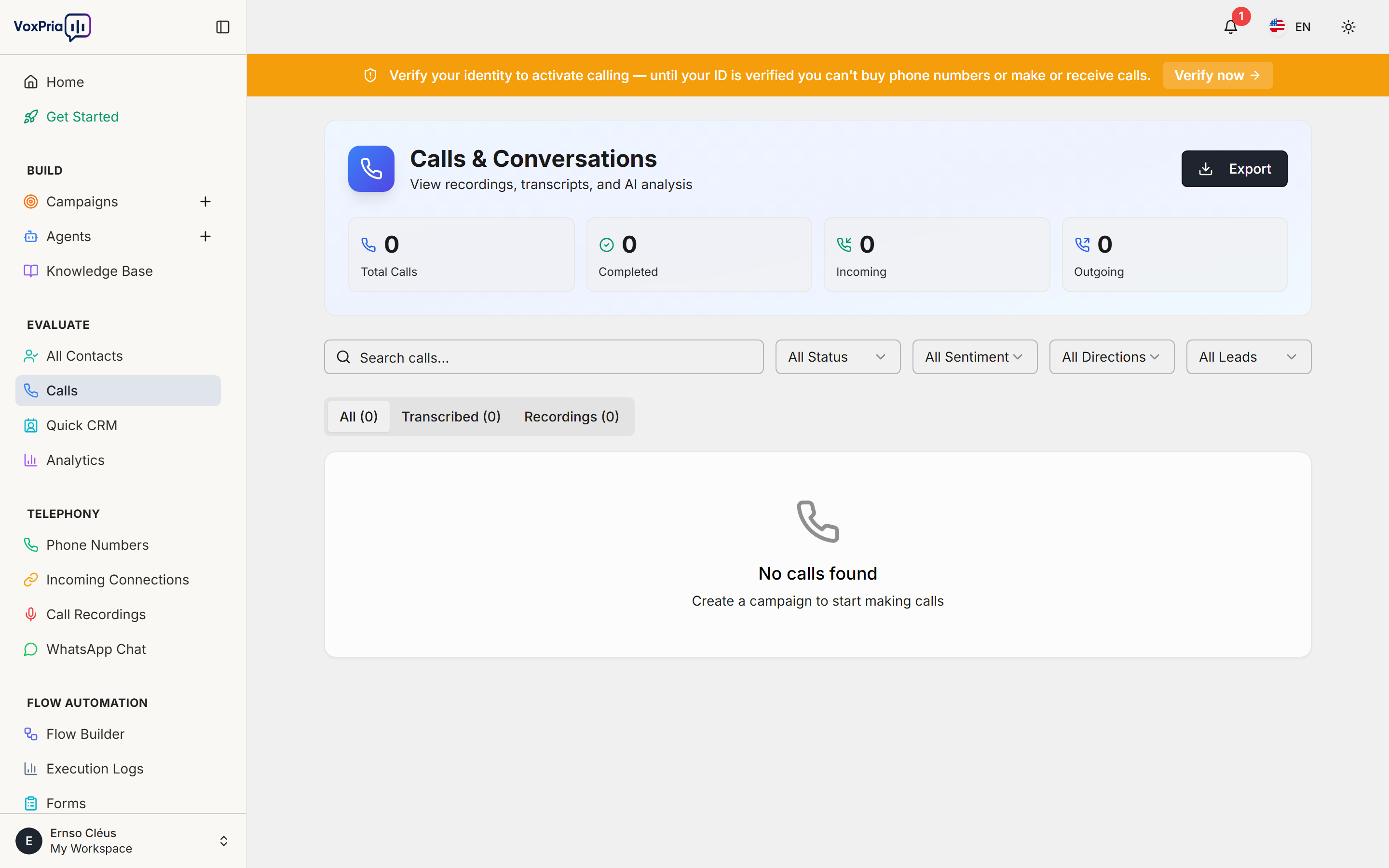
VoxPria automatically records all calls and provides detailed call history. Moreover, you can listen to recordings, read transcripts, and analyze performance. In this guide, we’ll show you how to access and use your call history effectively.
Accessing Call History #
First, navigate to the Calls section where all call records are stored. Additionally, you can access this from anywhere in the platform:
- Click EVALUATE in the left sidebar
- Select Calls
- You’ll see a list of all calls ordered by date (newest first)
Understanding Call List #
The call list displays essential information about each call. Furthermore, you can sort and filter to find specific calls quickly:
Call List Columns #
- Status – Call outcome (Answered, No Answer, Busy, Failed)
- Contact – Name and phone number called
- Campaign – Which campaign the call belongs to
- Agent – Which AI agent made the call
- Duration – How long the call lasted
- Date & Time – When the call occurred
- Actions – Quick access buttons (Play, View, Download)
Call Status Meanings #
Understanding call statuses helps you analyze campaign performance. Moreover, each status has specific implications:
- 🟢 Answered – Call was picked up and conversation completed
- 🔵 Voicemail – Call went to voicemail (message may have been left)
- 🟡 No Answer – Phone rang but wasn’t answered
- 🟠 Busy – Line was busy
- 🔴 Failed – Call couldn’t be completed (invalid number, network issue)
- ⚪ In Progress – Call is currently happening
Filtering and Searching Calls #
With potentially thousands of calls, filtering is essential. Additionally, VoxPria provides powerful search and filter options:
Available Filters #
- Date Range – Today, Yesterday, Last 7 days, Last 30 days, Custom range
- Status – Filter by call outcome
- Campaign – Show calls from specific campaign
- Agent – Filter by which agent made the call
- Duration – Calls longer/shorter than X seconds
- Phone Number – Search for specific number
💡 Pro Tip: Save your commonly used filters as “Saved Views” for quick access later.
Listening to Call Recordings #
VoxPria records all calls automatically. Furthermore, listening to recordings helps you understand agent performance and customer interactions:
How to Play a Recording #
- Find the call in your call list
- Click the Play button (▶️) in the Actions column
- The recording player opens with playback controls
- Use play/pause, skip forward/back, and speed controls
Recording Player Features #
- Playback Speed – Listen at 0.5x, 1x, 1.5x, or 2x speed
- Skip Controls – Jump forward/back 10 seconds
- Waveform View – See audio visualized
- Download Option – Save recording as MP3
- Share Link – Generate shareable playback link
Reading Call Transcripts #
In addition to recordings, VoxPria provides text transcripts. Moreover, transcripts are searchable and easier to scan:
- Click on any call to open the call details page
- Navigate to the “Transcript” tab
- Read the conversation word-for-word
- Speaker names are labeled (Agent vs. Customer)
- Timestamps show when each phrase was spoken
Transcript Features #
- Search – Find specific words or phrases
- Copy – Copy transcript text
- Download – Save as TXT or PDF
- Highlight – Mark important sections
Call Details Page #
Clicking any call opens a detailed view. Furthermore, this page contains comprehensive information about the call:
- Summary – Call outcome, duration, cost
- Recording – Audio player
- Transcript – Full conversation text
- Metadata – Campaign, agent, caller ID used
- Contact Info – Details about who was called
- Notes – Add custom notes about the call
- Tags – Categorize calls with tags
Downloading Call Data #
You can export call data for reporting or compliance. Additionally, VoxPria supports multiple export formats:
Export Options #
- CSV Export – Call list with all metadata
- Recordings ZIP – Bulk download MP3 files
- Transcripts PDF – All transcripts in one document
- API Access – Programmatic data retrieval
To export, select calls using checkboxes, then click “Export Selected”.
Privacy and Compliance #
Call recordings are stored securely and comply with regulations. Moreover, you control retention policies:
- Encryption – All recordings encrypted at rest
- Retention – Set automatic deletion after X days
- Access Control – Control who can listen to recordings
- Download Logs – Track who accessed recordings
Configure these in Settings → Privacy & Compliance.
Next Steps #
Related Articles:


