
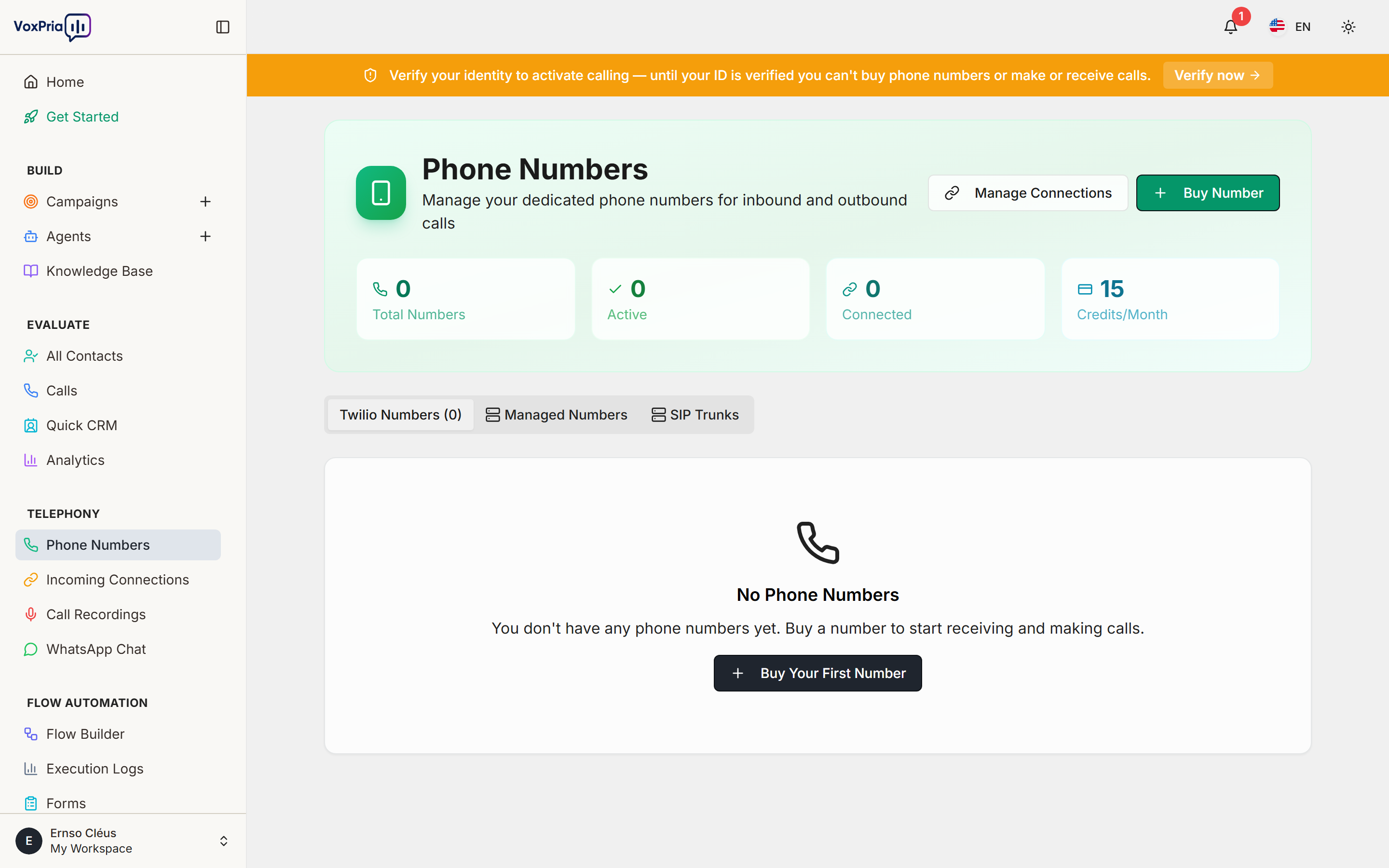
Get your AI agents answering phone calls in under 10 minutes! This guide walks you through the essential steps to connect your first phone number.
What You’ll Need #
Before starting, gather these items:
- A VoxPria account with SIP features enabled
- A phone number from a supported SIP provider (or purchase one)
- SIP authentication credentials from your provider
- An AI agent configured in VoxPria
Step 1: Create Your SIP Trunk #
A SIP trunk is the connection between VoxPria and your phone provider.
- Navigate to Phone Numbers in the VoxPria dashboard
- Click SIP Trunks in the top navigation
- Click Create Trunk
- Select your provider type:
- ElevenLabs SIP – Recommended for most users
- OpenAI SIP – For GPT-4o Realtime integration
- Generic – For other SIP providers
For ElevenLabs SIP #
- Enter a descriptive Trunk Name (e.g., “My ElevenLabs Trunk”)
- Add your SIP Username from ElevenLabs
- Add your SIP Password from ElevenLabs
- Server is pre-configured as
sip.rtc.elevenlabs.io - Choose TLS (recommended) or TCP transport
- Click Create Trunk
For OpenAI SIP #
- Enter a descriptive Trunk Name (e.g., “My OpenAI Trunk”)
- Add your OpenAI Project ID
- Add your OpenAI API Key
- Server is pre-configured for OpenAI
- Click Create Trunk
For Generic SIP Providers #
- Enter a descriptive Trunk Name
- Add your SIP Username
- Add your SIP Password
- Enter your provider’s SIP Server Address
- Set the Port (usually 5060 for TCP, 5061 for TLS)
- Choose Transport type (TLS recommended)
- Click Create Trunk
Step 2: Import Your Phone Number #
Now add your phone number to VoxPria.
- Go to Phone Numbers in the dashboard
- Click Import Number
- Enter your phone number in E.164 format (e.g.,
+12125551234) - Select the SIP Trunk you created
- Choose the Engine (ElevenLabs or OpenAI)
- Click Import
+ sign followed by the country code and number with no spaces or dashes.
Step 3: Assign an AI Agent #
Link your phone number to an AI agent so it can handle calls.
- Find your imported phone number in the list
- Click the Edit button
- In the Agent dropdown, select your AI agent
- Click Save Changes
Step 4: Test Your Setup #
Make a test call to verify everything works!
Testing Inbound Calls #
- Use your mobile phone to call your configured number
- Your AI agent should answer and begin the conversation
- Have a brief conversation to test response quality
- After the call, check the Call Logs to review the interaction
Testing Outbound Calls (ElevenLabs Only) #
- Navigate to Campaigns or use the API
- Create a test campaign with your phone number
- Add a test recipient (your own mobile number)
- Start the campaign and wait for the call
- Verify your agent makes the outbound call successfully
Troubleshooting Common Issues #
“Import Failed” Error #
- Verify your API key is correctly entered in the trunk settings
- Ensure the phone number format is correct (E.164)
- Check that you haven’t exceeded the import rate limit (10 per minute)
Agent Not Answering Calls #
- Confirm the agent is assigned to the phone number
- Verify the agent has a valid system prompt configured
- Check that your SIP trunk credentials are correct
- Review call logs for specific error messages
Connection Issues #
- Ensure you selected the correct transport type (TLS/TCP)
- Verify your provider’s SIP server address is correct
- For ElevenLabs, use
sip.rtc.elevenlabs.io(not the old address) - Check firewall settings allow SIP traffic on the correct ports
Next Steps #
Optimize Your Setup #
- Configure call recording preferences
- Set up call routing rules
- Create custom greetings for different scenarios
- Enable call analytics and monitoring
Scale Your Operations #
- Import additional phone numbers
- Create multiple trunks for different providers
- Set up automated calling campaigns
- Integrate with your CRM via webhooks
Advanced Configuration #
- Review API Reference for programmatic control
- Set up Security Best Practices for production
- Explore Troubleshooting for advanced scenarios
Need Help? #
- Check our Frequently Asked Questions for common questions
- Review Supported SIP Providers for provider-specific guides
- Contact VoxPria support for technical assistance


